How to compress Video Without Losing its Quality

Follow these steps
1.Download Handbrake from here
2.Launch Handbrake. Do not be put off by all the buttons and options available – you usually only need to use a few of them.
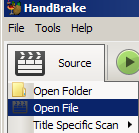
3. Click Source > Open File to select the video you want to compress. In this tutorial, I select WL_Video.wmv and then click Open. You can see the original size was 39MB.
4. In Handbrake, under Destination you can decide where the compressed file is saved by clickingBrowse. By default, it is saved in the same folder where the original file is. You can change to other location if necessary. You are required to provide a name for the compressed file.


7. Click Start to compress the video. The green Start button will become red Stop button until the compression is complete. When it is back to green. You are ready to view the compressed video. The original video file was reduced from 39.0MB to 4.40MB. The compressing process for this small file took around 20 seconds. If it is a very large file, it can take much longer to compress.
Tags:
youtube




0 comments